> ## Documentation Index
> Fetch the complete documentation index at: https://docs-beta.rebase.energy/llms.txt
> Use this file to discover all available pages before exploring further.
# Quickstart
> Build your first energy dashboard in minutes with the Rebase Dashboard API
## Get started in three steps
Ready to build your first energy dashboards? Let's get you up and running with the Rebase Dashboard API quickly and efficiently.
### Step 1: Install and authenticate
Install the Rebase Dashboard API client with pip:
```bash theme={null}
pip install rebase-dashboard
```
That's it! The client is ready to use.
You'll need an API token to access the Rebase Dashboard API:
1. Sign up at [dash.rebase.energy](https://dash.rebase.energy)
2. Navigate to your account settings
3. Copy your API token to use in your code
Now let's create your API client:
```python theme={null}
from rebase_dashboard import RebaseDashboardClient
client = RebaseDashboardClient(
api_key="YOUR_API_KEY",
)
```
### Step 2: Create your first dashboard
Let's build a complete energy dashboard workflow. We'll create a wind farm visualization with weather overlays - a comprehensive example that demonstrates the full power of the platform.
#### 2.1 Create a dashboard
Let's start by creating an empty dashboard that we can build upon:
```python theme={null}
# Create the dashboard
dashboard = client.dashboards.create_dashboard(
name="North Sea Wind Farm Dashboard",
components=[], # We will create these later on
)
print(f"Created dashboard: {dashboard.id}")
```
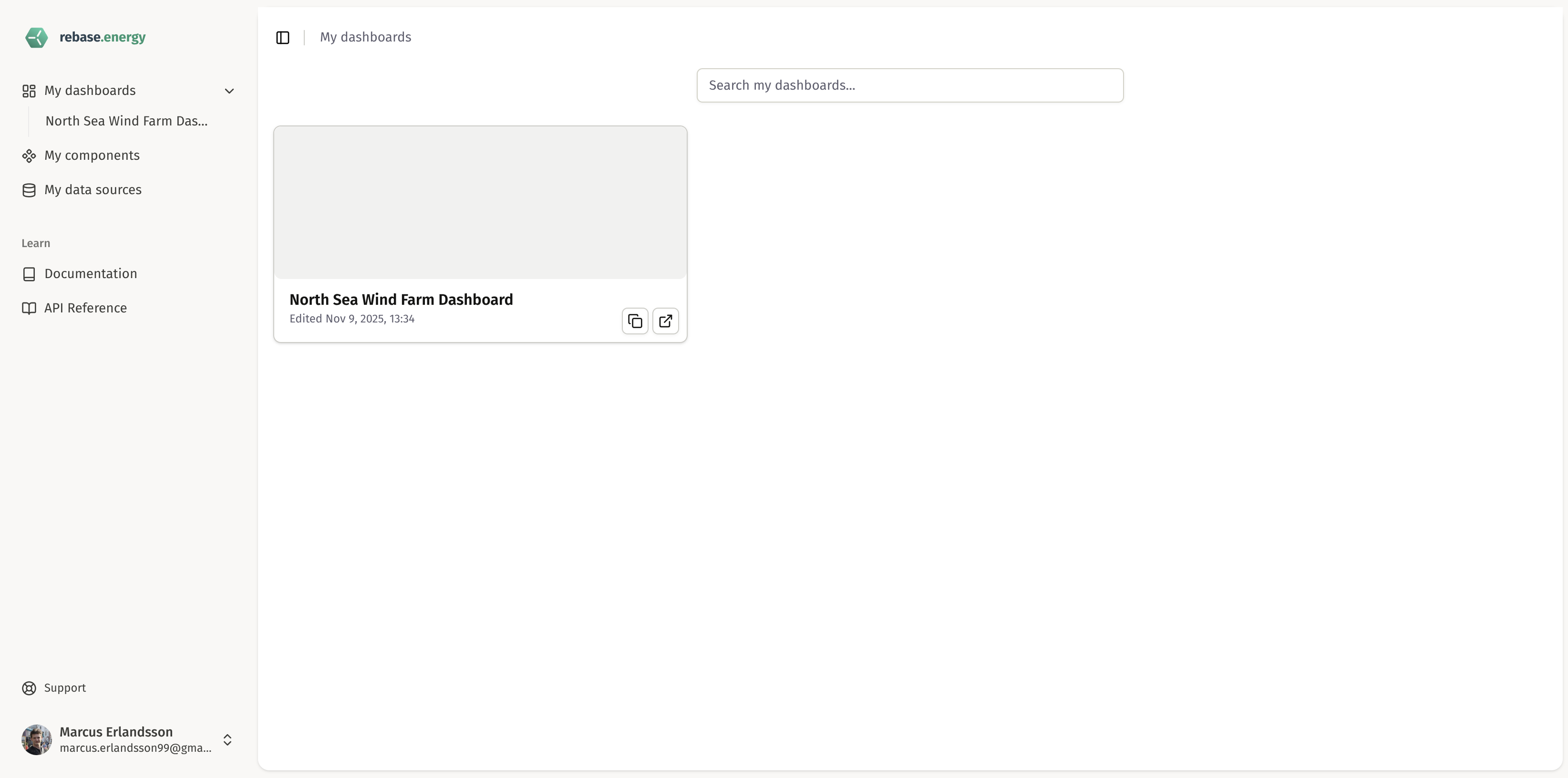
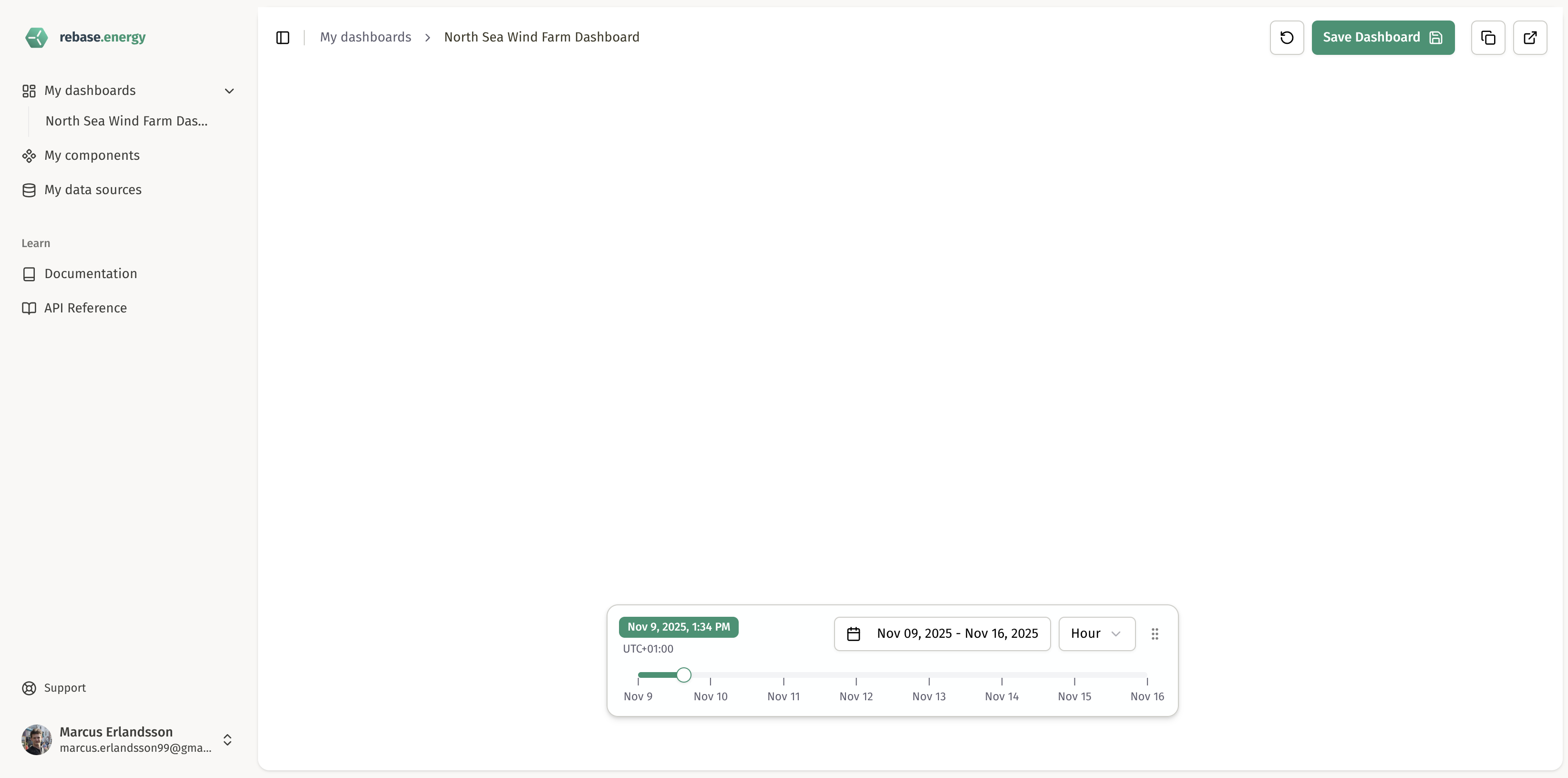
You can now go to the dashboard page and see the dashboard you created. When opening it you will see that it is currently empty, so our next step is to add a component to it.
 #### 2.2 Create a map component for your dashboard
Let's begin with a Map component, which can be used to create interactive visualizations with weather data, wind farms and more:
```python theme={null}
# Create a map component for our dashboard
map_component = client.components.create_map(
name="Wind Farm Map",
config={
"map_style": "mapbox://styles/mapbox/outdoors-v12"
},
layer_ids=[] # We will create these later on
)
print(f"Created map component: {map_component.id}")
```
Lastly we need to add this new component to our existing dashboard, otherwise it will not be used. We do this using the API update call:
```python theme={null}
# Add our new component to the dashboard
updated_dashboard = client.dashboards.update_dashboard(
dashboard.id,
components=[map_component.id], # Add the Map Component id here
)
```
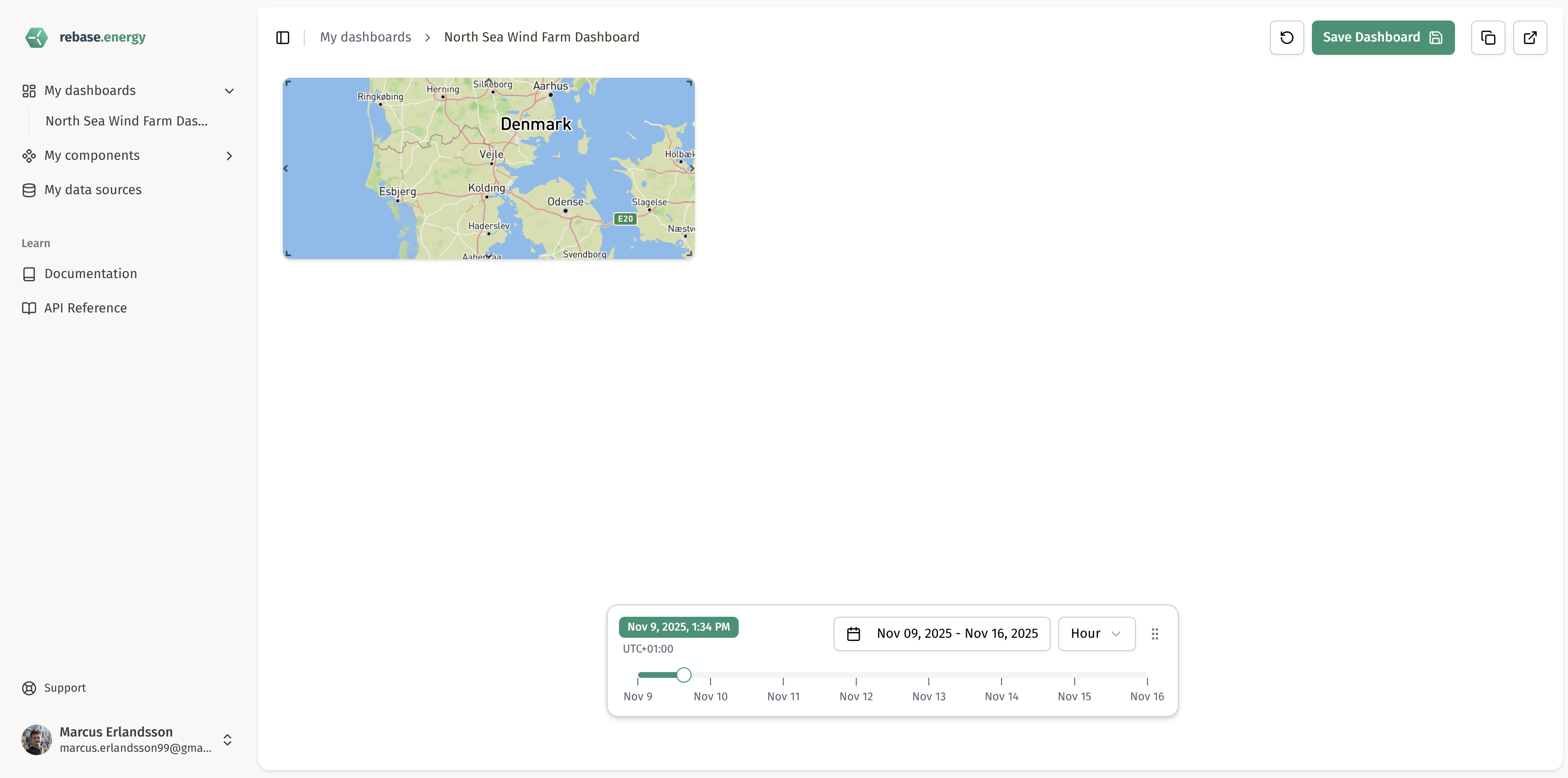
Now if you open your dashboard again, you should see your new map component displayed. In the dashboard you can also drag and rescale your component to fit your use. However, the map component does not have any layers to display at the moment. So our next step is to create Map Layers and Weather Layers to show in your dashboard component.
#### 2.2 Create a map component for your dashboard
Let's begin with a Map component, which can be used to create interactive visualizations with weather data, wind farms and more:
```python theme={null}
# Create a map component for our dashboard
map_component = client.components.create_map(
name="Wind Farm Map",
config={
"map_style": "mapbox://styles/mapbox/outdoors-v12"
},
layer_ids=[] # We will create these later on
)
print(f"Created map component: {map_component.id}")
```
Lastly we need to add this new component to our existing dashboard, otherwise it will not be used. We do this using the API update call:
```python theme={null}
# Add our new component to the dashboard
updated_dashboard = client.dashboards.update_dashboard(
dashboard.id,
components=[map_component.id], # Add the Map Component id here
)
```
Now if you open your dashboard again, you should see your new map component displayed. In the dashboard you can also drag and rescale your component to fit your use. However, the map component does not have any layers to display at the moment. So our next step is to create Map Layers and Weather Layers to show in your dashboard component.
 #### 2.3 Create layers for the map component
Layers can be customized to visualize many different types of data and information. Let's begin by creating a layer for wind data which we can then display with our existing map component:
```python theme={null}
# Create a weather layer for wind speed
wind_speed_layer = client.layers.create_layer(
name="Wind Speed at 10m",
type="wl:RasterLayer",
weather_model_id="ECMWF_IFS",
variable="WindSpeed",
altitude=10,
run_day="latest",
run_hour="0",
deckgl_props={
"opacity": 0.7
}
)
print(f"Created weather layer: {wind_speed_layer.id}")
```
Next, let's create a layer showing our windfarms. To do this, we first need to create a dataset with the data for our windfarms:
```python theme={null}
# Create a geospatial dataset for wind turbines
geospatial_dataset = client.datasets.create_geospatial_static(
name="North Sea Wind Farm",
data=[
{
"position": [3.5, 55.2],
"properties": {
"turbine_id": "T001",
"capacity_mw": 8.0,
"status": "operational"
}
},
{
"position": [3.6, 55.3],
"properties": {
"turbine_id": "T002",
"capacity_mw": 8.0,
"status": "operational"
}
},
{
"position": [3.4, 55.1],
"properties": {
"turbine_id": "T003",
"capacity_mw": 8.0,
"status": "maintenance"
}
}
],
description="Wind turbine locations in the North Sea",
metadata={
"region": "North Sea",
"country": "Netherlands",
"total_capacity": "24 MW"
}
)
print(f"Created dataset: {geospatial_dataset.id}")
```
Next, to visualize those turbines on our map we create a new layer for them. This layer is similar to the one we made previously for wind data, but instead of information for weather data models we will specify the type as a "ScatterPlotLayer" and add the id for the dataset we just created:
```python theme={null}
# Create a scatterplot layer for wind turbines
wind_turbines_layer = client.layers.create_layer(
name="Wind Turbines Layer",
type="ScatterPlotLayer",
dataset_id=geospatial_dataset.id,
deckgl_props={
"getFillColor": [0, 255, 0],
"getLineColor": [0, 200, 0],
}
)
print(f"Created map layer: {wind_turbines_layer.id}")
```
Finally, for these two new layers to show up in our Map component, we also need to add their layer IDs to the component. We do this by updating the map component with the "update" API call:
```python theme={null}
# Update the map component with our new Weather Layer
updated_map_component = client.components.update_map(
map_component.id,
layer_ids=[wind_speed_layer.id, wind_turbines_layer.id] # Add your Layer ids here
)
print(f"Updated map component: {map_component.id} with Weather Layer: {wind_speed_layer.id} and Turbine Layer: {wind_turbines_layer.id}")
```
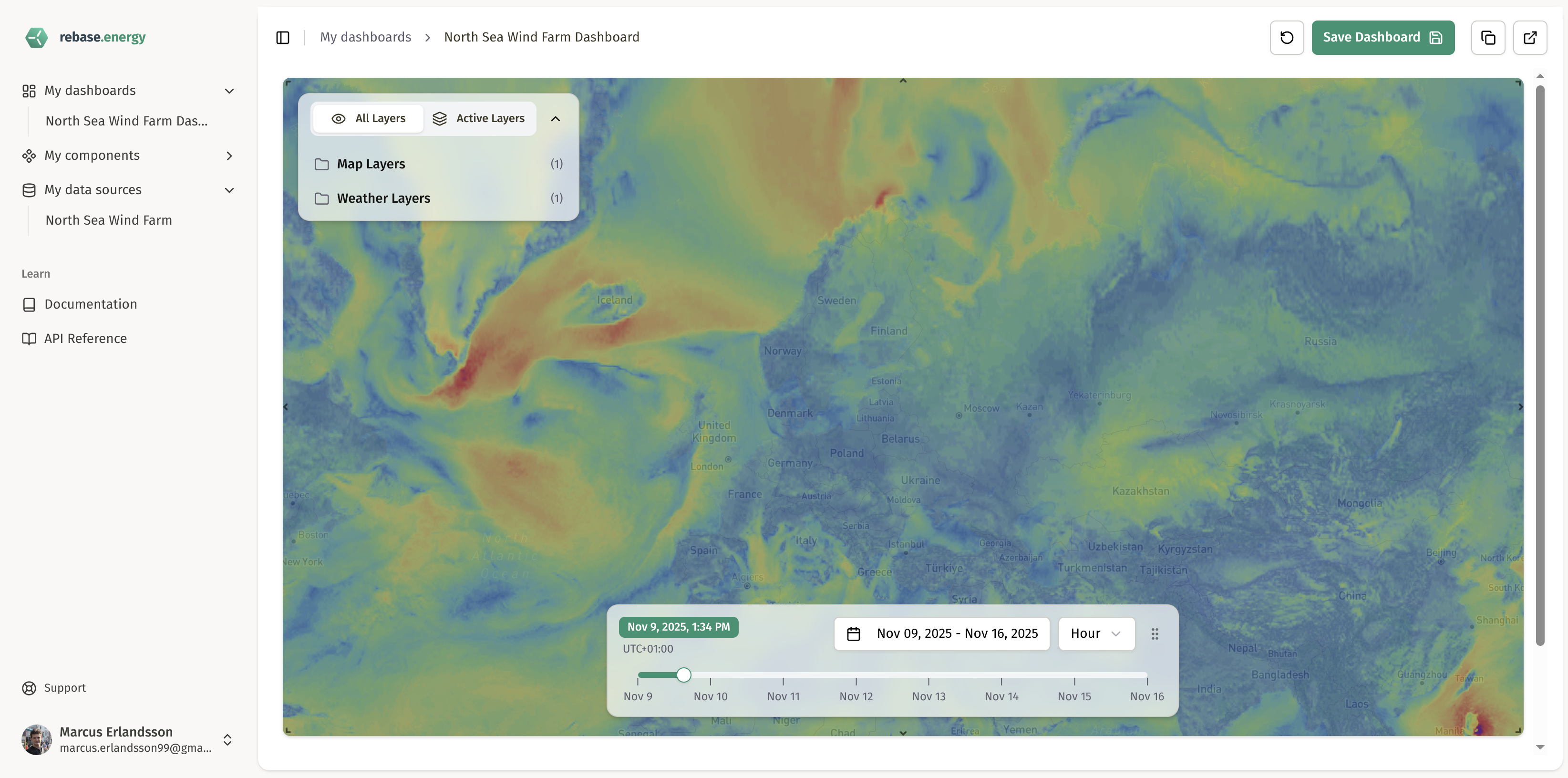
Now if you go back to your dashboard, you will see the layers displayed:
#### 2.3 Create layers for the map component
Layers can be customized to visualize many different types of data and information. Let's begin by creating a layer for wind data which we can then display with our existing map component:
```python theme={null}
# Create a weather layer for wind speed
wind_speed_layer = client.layers.create_layer(
name="Wind Speed at 10m",
type="wl:RasterLayer",
weather_model_id="ECMWF_IFS",
variable="WindSpeed",
altitude=10,
run_day="latest",
run_hour="0",
deckgl_props={
"opacity": 0.7
}
)
print(f"Created weather layer: {wind_speed_layer.id}")
```
Next, let's create a layer showing our windfarms. To do this, we first need to create a dataset with the data for our windfarms:
```python theme={null}
# Create a geospatial dataset for wind turbines
geospatial_dataset = client.datasets.create_geospatial_static(
name="North Sea Wind Farm",
data=[
{
"position": [3.5, 55.2],
"properties": {
"turbine_id": "T001",
"capacity_mw": 8.0,
"status": "operational"
}
},
{
"position": [3.6, 55.3],
"properties": {
"turbine_id": "T002",
"capacity_mw": 8.0,
"status": "operational"
}
},
{
"position": [3.4, 55.1],
"properties": {
"turbine_id": "T003",
"capacity_mw": 8.0,
"status": "maintenance"
}
}
],
description="Wind turbine locations in the North Sea",
metadata={
"region": "North Sea",
"country": "Netherlands",
"total_capacity": "24 MW"
}
)
print(f"Created dataset: {geospatial_dataset.id}")
```
Next, to visualize those turbines on our map we create a new layer for them. This layer is similar to the one we made previously for wind data, but instead of information for weather data models we will specify the type as a "ScatterPlotLayer" and add the id for the dataset we just created:
```python theme={null}
# Create a scatterplot layer for wind turbines
wind_turbines_layer = client.layers.create_layer(
name="Wind Turbines Layer",
type="ScatterPlotLayer",
dataset_id=geospatial_dataset.id,
deckgl_props={
"getFillColor": [0, 255, 0],
"getLineColor": [0, 200, 0],
}
)
print(f"Created map layer: {wind_turbines_layer.id}")
```
Finally, for these two new layers to show up in our Map component, we also need to add their layer IDs to the component. We do this by updating the map component with the "update" API call:
```python theme={null}
# Update the map component with our new Weather Layer
updated_map_component = client.components.update_map(
map_component.id,
layer_ids=[wind_speed_layer.id, wind_turbines_layer.id] # Add your Layer ids here
)
print(f"Updated map component: {map_component.id} with Weather Layer: {wind_speed_layer.id} and Turbine Layer: {wind_turbines_layer.id}")
```
Now if you go back to your dashboard, you will see the layers displayed:
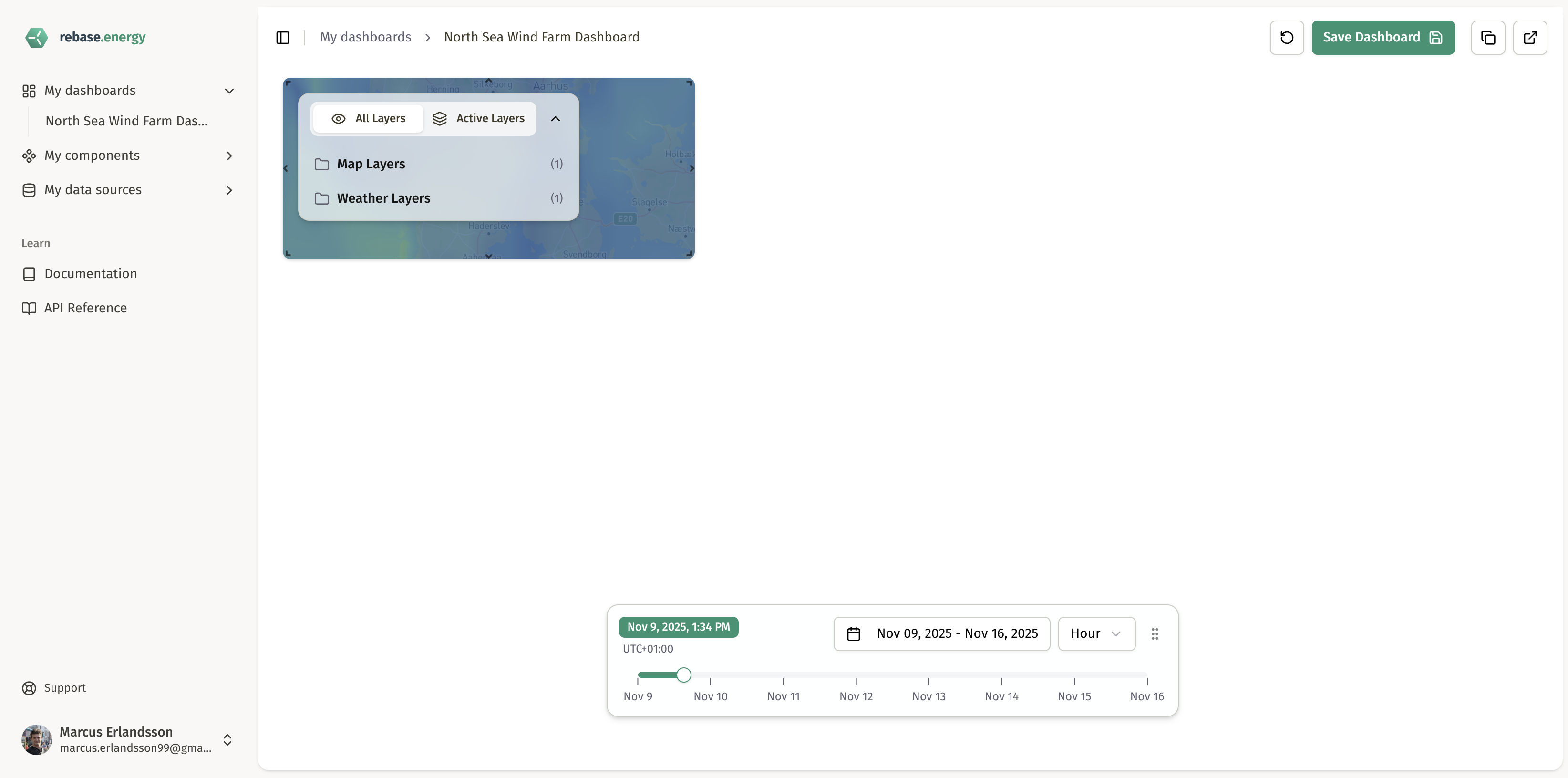 You can also drag the map component to give it the size and position that suits your needs:
 ### Step 3: View your dashboard
Your dashboard is now live! Open it in your browser:
```
https://dash.rebase.energy
```
Once on the web page, log in with your Rebase account and start exploring your new dashboard.
You can now:
* Drag and drop components to rearrange the layout
* Customize chart colors and styling with ECharts options
* Adjust map styles and layer properties
* Add more datasets and components
Try customizing the chart colors or changing the map style to see the updates!
## Key concepts you just learned
Now that you've built your first dashboard, learn more about the concepts you just used:
Store your energy data - timeseries and geospatial. Can be static or live from
external APIs.
Visualize data on interactive maps and overlay weather data using unified
DeckGL layers.
Build reusable visualization components - maps, charts, and weather displays.
Combine components in drag-and-drop grid layouts for complete energy
monitoring solutions.
**Need help?** Check out our [full API
documentation](/api-reference/introduction) or join our
[community](https://github.com/rebase-energy/community) for support and
examples.
### Step 3: View your dashboard
Your dashboard is now live! Open it in your browser:
```
https://dash.rebase.energy
```
Once on the web page, log in with your Rebase account and start exploring your new dashboard.
You can now:
* Drag and drop components to rearrange the layout
* Customize chart colors and styling with ECharts options
* Adjust map styles and layer properties
* Add more datasets and components
Try customizing the chart colors or changing the map style to see the updates!
## Key concepts you just learned
Now that you've built your first dashboard, learn more about the concepts you just used:
Store your energy data - timeseries and geospatial. Can be static or live from
external APIs.
Visualize data on interactive maps and overlay weather data using unified
DeckGL layers.
Build reusable visualization components - maps, charts, and weather displays.
Combine components in drag-and-drop grid layouts for complete energy
monitoring solutions.
**Need help?** Check out our [full API
documentation](/api-reference/introduction) or join our
[community](https://github.com/rebase-energy/community) for support and
examples.